Settings & account
Your preferences, your data.
Open Settings with the gear button at the bottom of the sidebar, and your Account page with the person button next to it. This page covers both.
General
- Portfolio name and Portfolios — rename the portfolio you’re viewing, and create, switch or delete portfolios.
- Open on startup — skip the portfolio picker and always open one portfolio.
- Display currency — CAD, USD or GBP. Every value is converted using daily European Central Bank exchange rates.
- Home market — the index that leads the Markets list and is the comparison line on your dashboard chart.
- Privacy mode — hides balances, gains and costs behind dots, handy when sharing your screen. Prices and indices stay visible.
Appearance
- Mode — Light, Dark, or System to follow your computer.
- Style — colour palettes such as Default, Claude, Nord, Dracula, Gruvbox, Tokyo Night, Catppuccin and GitHub. Hover one to preview it.
Data sources
- Yahoo Finance — where prices come from. No key needed. Sync now refreshes every holding.
- NewsAPI key — turns on headlines. How to get one.
AI engine
Choose Local (Ollama), Gemini or Groq. The rows below change to match: a model picker for Local, or a key, model and usage rows for the cloud engines. See the API keys guide.
Security
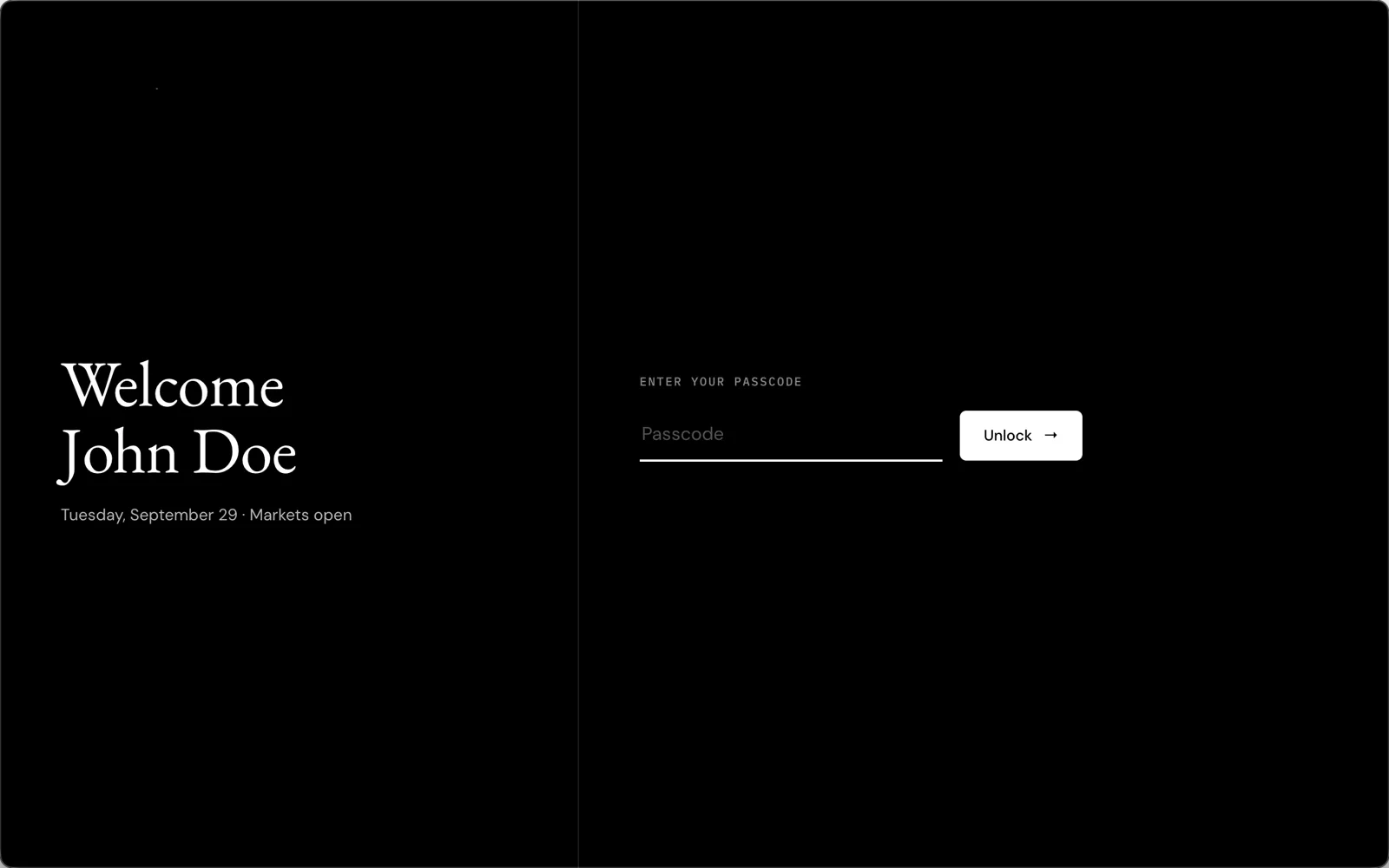
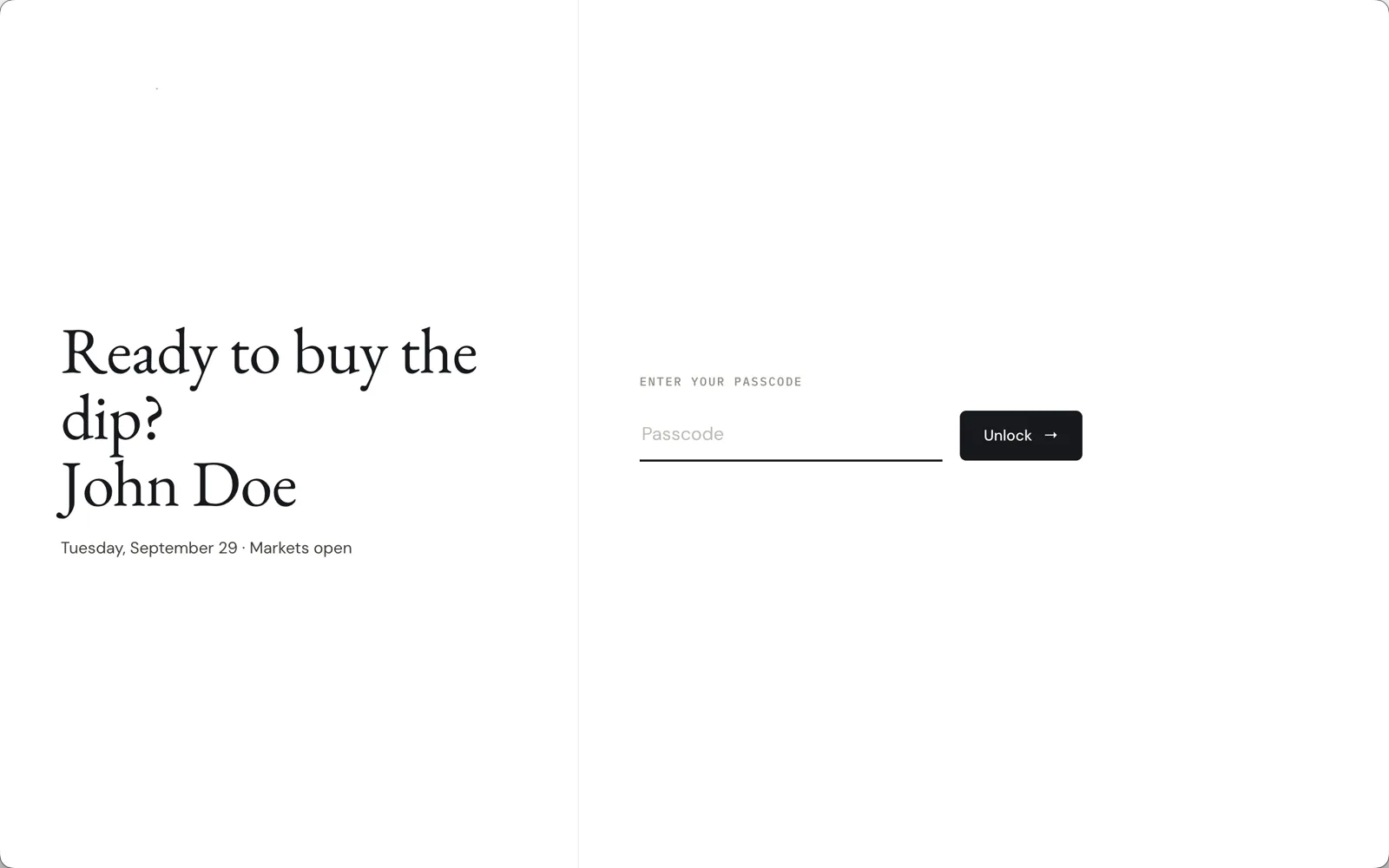
- Local passcode — set, change or remove the passcode asked for when Soritch opens.
- Session — Log out locks the app until the passcode is entered again.
Backup
- Export data — save your data to a JSON file, choosing which parts to include. Your passcode is never included. API keys are left out unless you tick them and confirm.
- Import data — restore from a Soritch backup. Only the parts in the backup are replaced.
About and danger zone
- Version — the build you have installed, such as Prerelease 1.0.
- Clear all holdings — removes every position in the current portfolio, keeping its journal, other portfolios and watchlists.
- Reset app data — deletes everything Soritch stores on this computer, including API keys, and signs you out.
Both danger-zone actions ask you to type a confirmation, and neither can be undone. Export a backup first.
Your account page
The Account page shows your name, email, a short bio and when you joined. Cards below show your contact details, address, investor profile and account information. Edit profile reopens the setup steps so you can change any of them. Further down are your all-time performance and a full activity log of adds, sales and removals.