Getting started
Get set up in a few minutes.
Soritch runs entirely on your own computer. There’s no cloud account, no email verification and nothing to wait on. This guide covers installing the app, the short setup flow, unlocking it later and finding your way around.
Install Soritch
Download the build for your computer from the download page: a .dmg for Mac (Apple Silicon or Intel) or a .zip for Windows. On a Mac, open the .dmg and drag Soritch into Applications.
Create your local account
The first time you open Soritch, a short setup flow appears before the app. It creates a local account: everything stays on this computer and nothing is sent anywhere. The flow has eight steps:
After the review you can import a holdings CSV from your broker straight away, or skip it and add positions later.
Opening Soritch
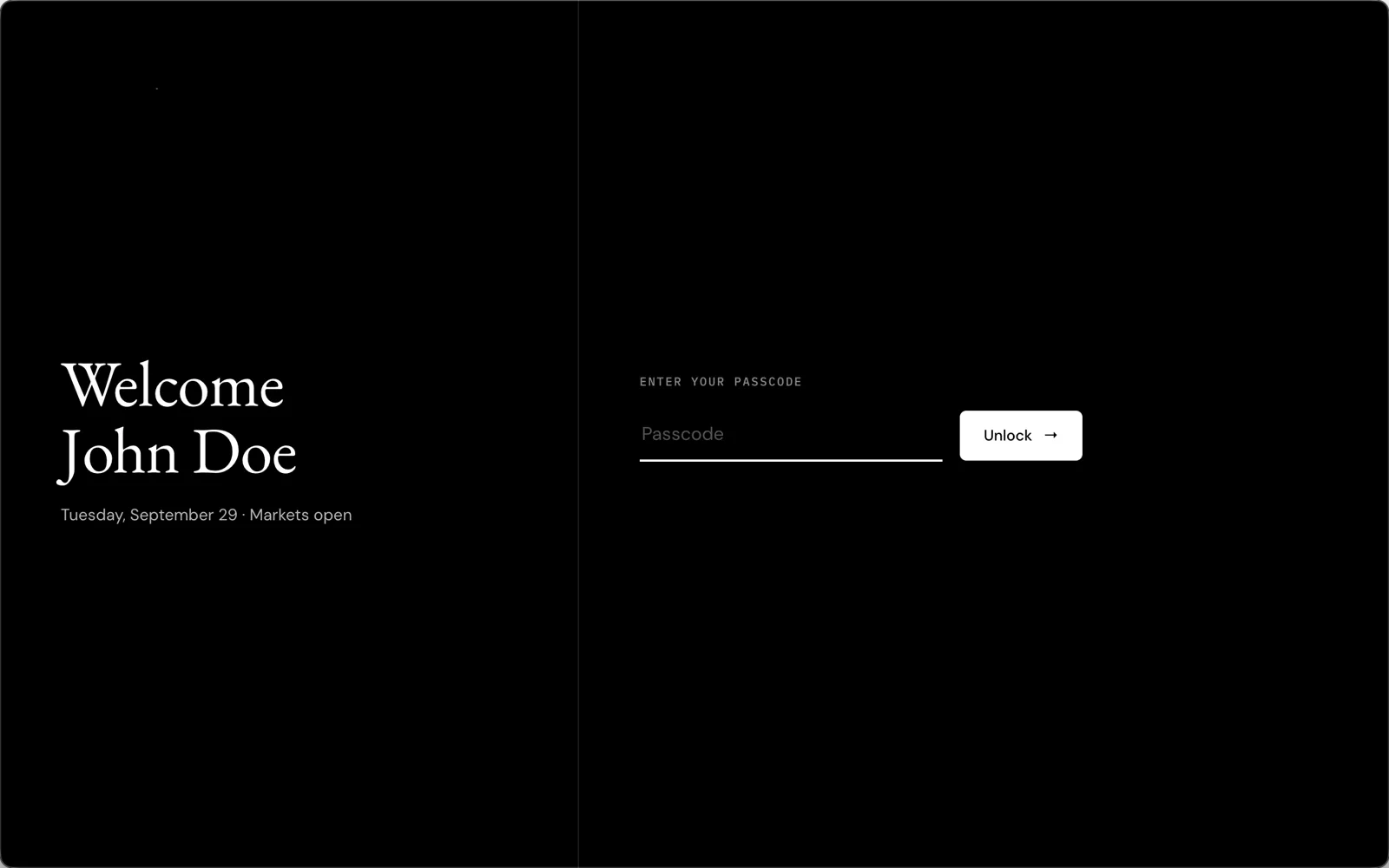
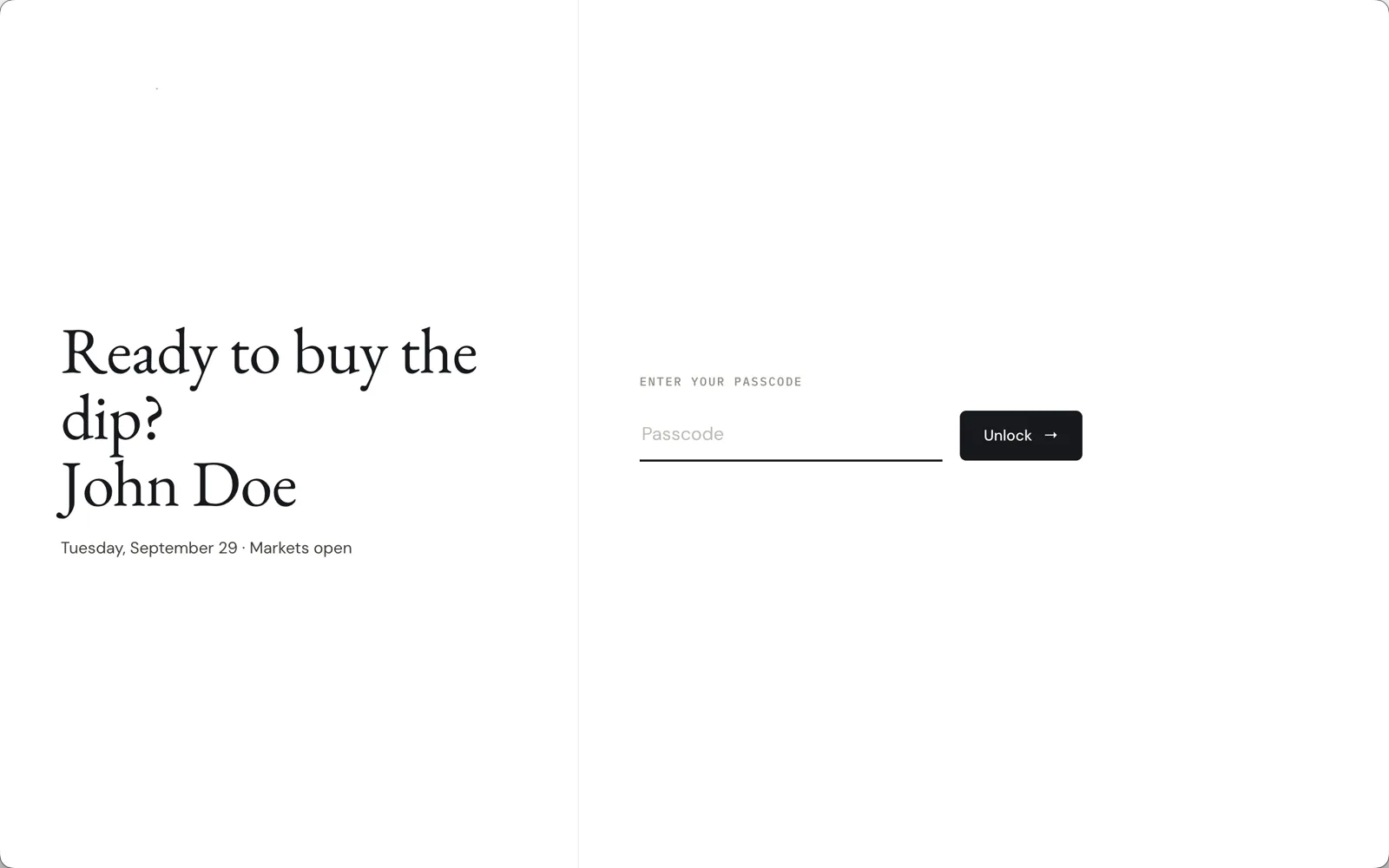
Each launch starts with a greeting. If you set a passcode, you enter it right there and click Unlock.
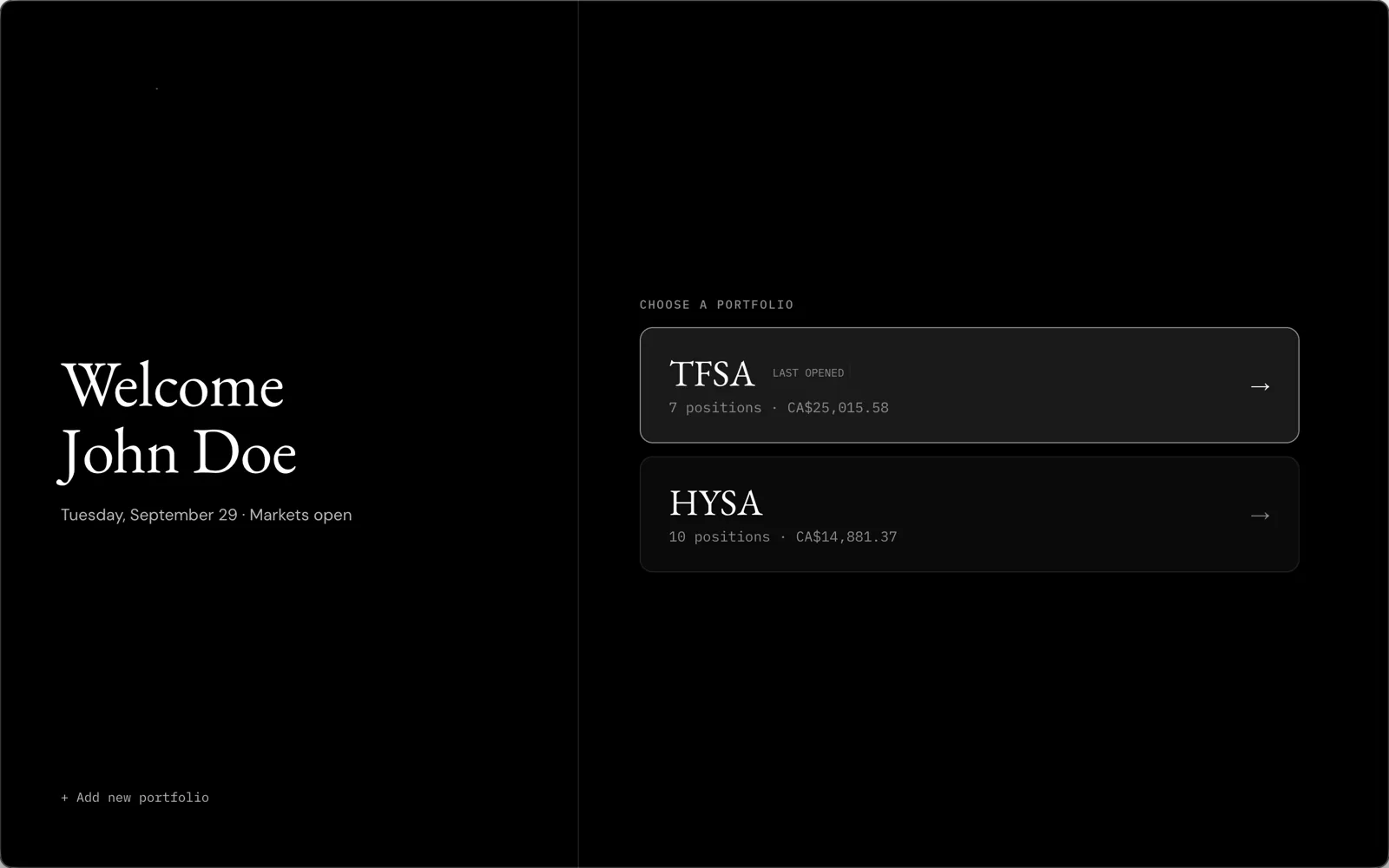
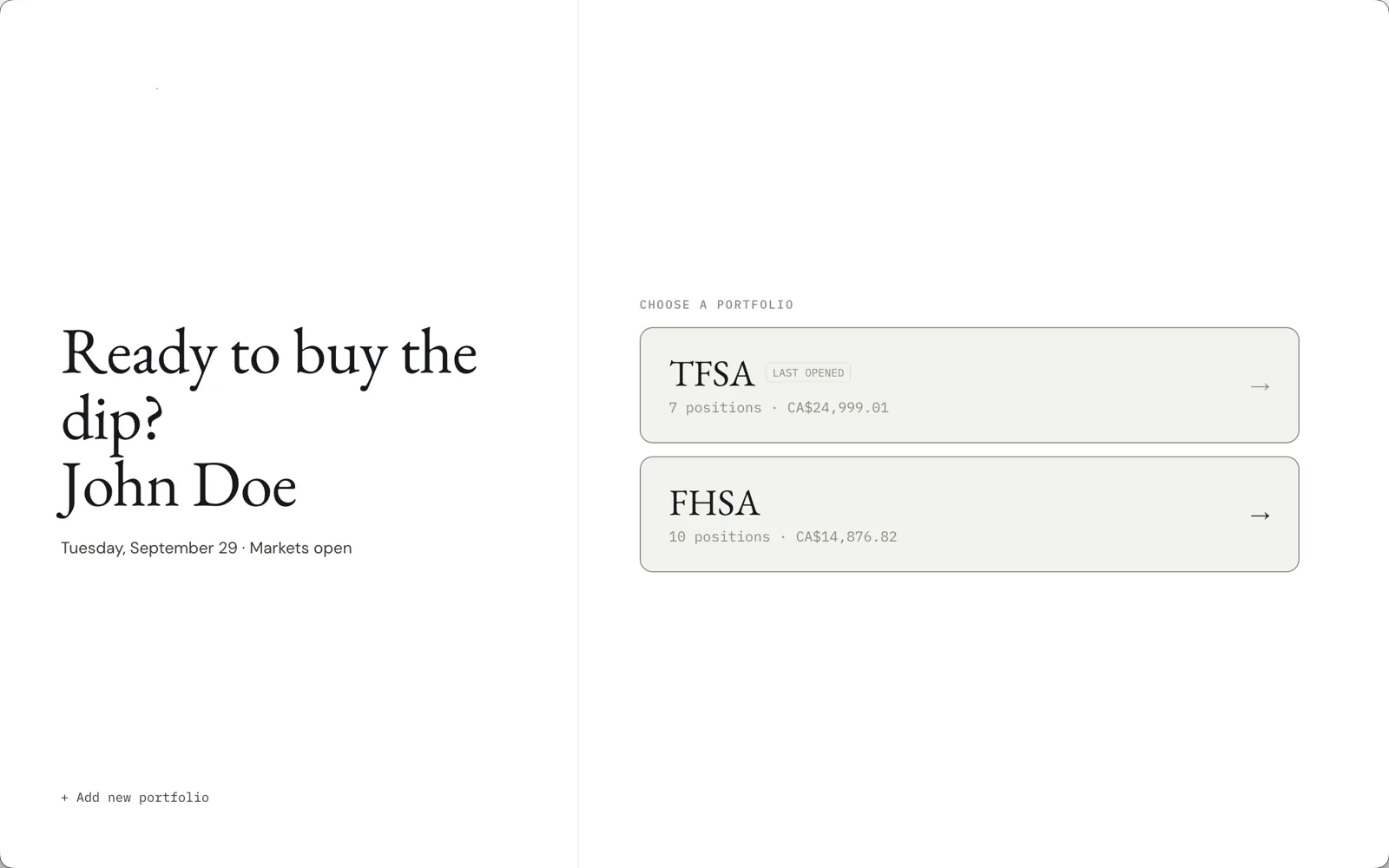
If you have more than one portfolio, the splash then asks which one to open. To skip this step, choose a portfolio under Settings › General › Open on startup.
Finding your way around
The sidebar on the left has seven pages: Dashboard, Portfolio, Watchlist, News, Analytics, Journal and Learn. Above them you’ll see your total portfolio value and a dot showing whether the US market is open, in pre-market, after hours or closed. The arrow next to the Soritch name collapses the sidebar to icons.
Three buttons sit at the bottom of the sidebar:
- Switch portfolio — jump between portfolios or create a new one.
- Settings — currency, theme, data sources, AI engine, passcode, backups and more. See Settings & account.
- Account — your profile, performance and activity log.
Optional: connect your API keys
Prices, charts and scores work out of the box. Headlines and AI write-ups need free keys from outside services. The API keys guide walks through each one.