Analytics
A score and a plain-English take on any stock.
Analytics turns any stock or ETF into a 0–100 score with a buy, hold or sell signal, a 7-day forecast range and a written summary. It’s there to support your decisions, not make them, and it isn’t financial advice.
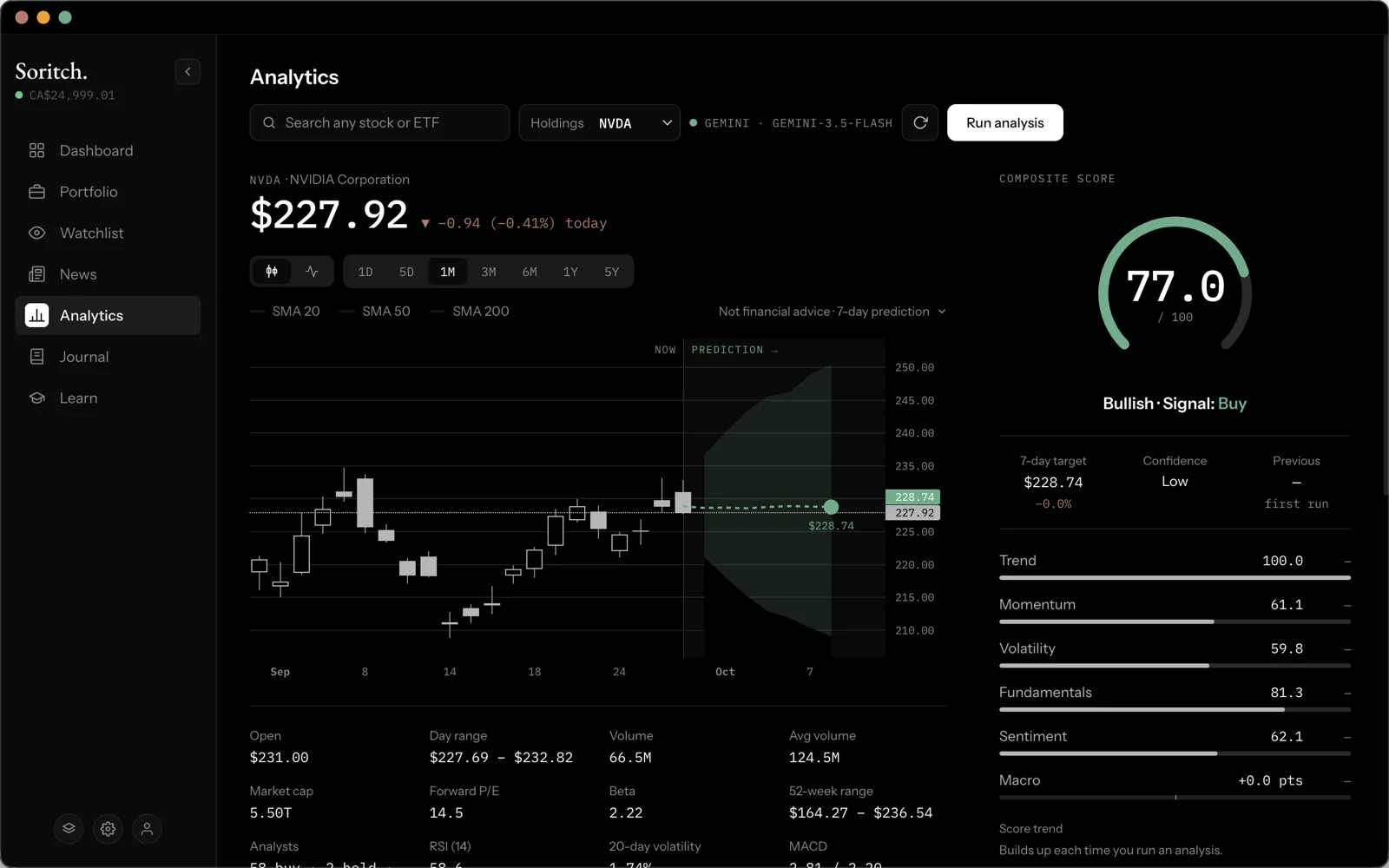
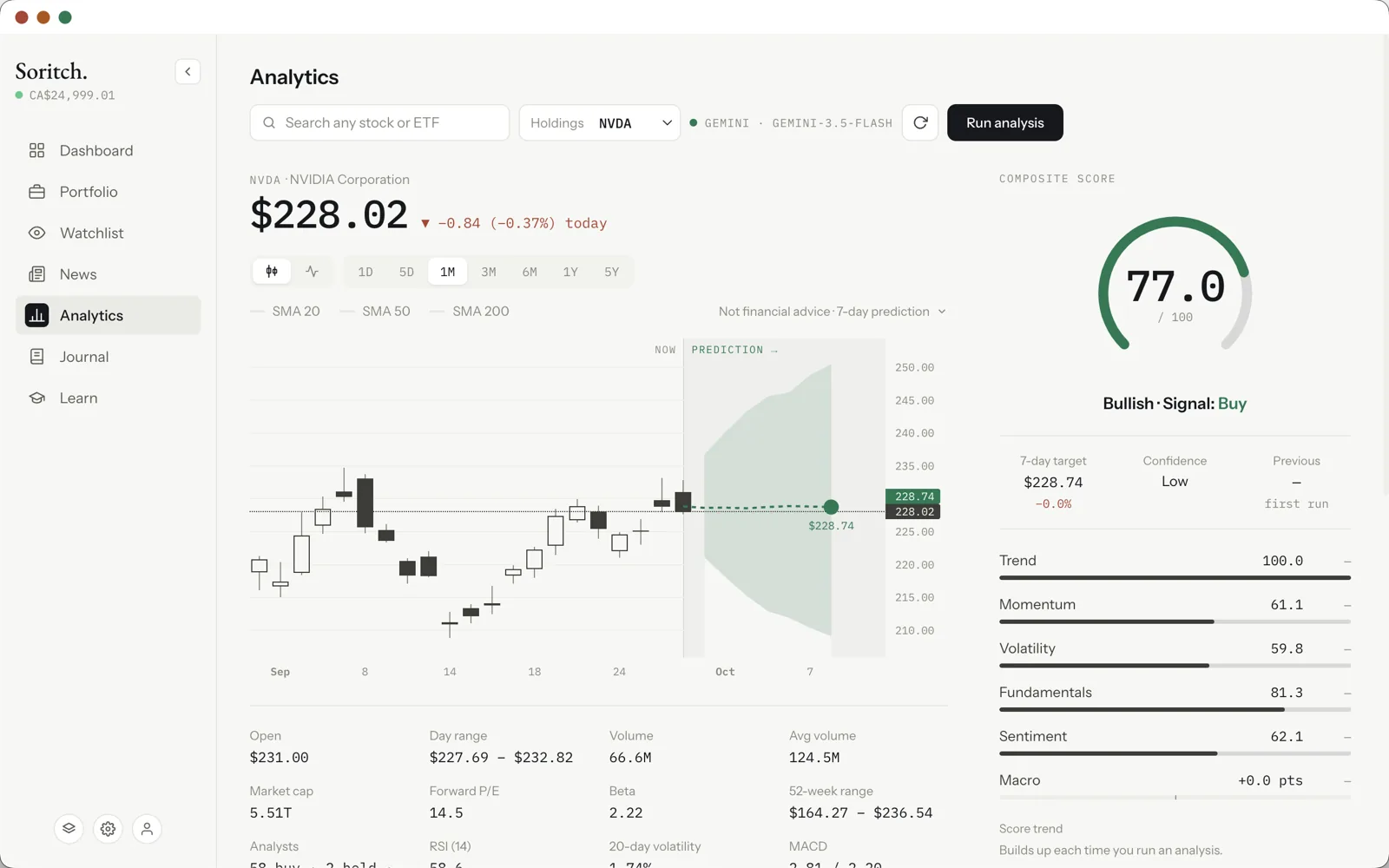
Running an analysis
Search for any stock or ETF at the top, or pick one of your holdings from the menu next to it, then click Run analysis. A status line shows each step while Soritch gathers prices, fundamentals and news. It usually takes a few seconds.
Results are saved for the rest of the day, so reopening the same stock is instant. The refresh button next to Run analysis runs it again from scratch.
Reading the score
The composite score runs from 0 to 100, with a label and a signal:
- 0–30 Bearish · 31–45 Weak · 46–55 Neutral · 56–70 Favorable · 71–100 Bullish
Underneath, bars show the pieces it’s built from:
- Trend — whether the price has been heading up, down or sideways.
- Momentum — how strongly it’s been moving lately.
- Volatility — how much it swings, including whether it’s unusually calm before a possible bigger move.
- Fundamentals — valuation and financial health.
- Sentiment — the tone of recent headlines and analyst views.
- Macro — an adjustment for what’s happening across the stock’s sector.
You’ll also see a 7-day price target, a confidence level and how the score compares with the last time you ran it.
The chart and forecast
The price chart has ranges from one day to five years, optional 20/50/200-day moving averages, and a line or candlestick view. A shaded cone projects the likely range over the next 7 days. It shows a spread of outcomes, not a single prediction.
AI write-up and chat
If an AI engine is connected, Soritch adds a plain-English summary of the outlook, risks and what to watch. A chat box lets you ask follow-up questions; it answers using only what’s on the page for that stock, not your portfolio.
Connecting an AI engine
The status near the top (for example • GROQ · model name) shows which engine is in use. Green means it’s ready; red means it needs setting up. Choose one in Settings › AI engine:
- Local (Ollama) — runs on your own computer, free and private, but needs a fairly powerful machine.
- Gemini — Google’s cloud AI, with a free API key.
- Groq — a very fast cloud service, also with a free key.